🛠️ Connect Your TradingView Account
This page explains how to connect your TradingView username to gain access to AI Edge premium indicators.
Prerequisites
Before you can connect TradingView, you must:
- Have an active AI Edge subscription in Patreon (in one of these tiers: AI Edge Trader, AI Edge Trader Legacy, AI Edge Trader Plus, or AI Edge Trader Pro)
- Be logged in to AI Edge (authenticated against your Patreon account)
If you're already logged in, you can go directly to your User Profile to connect TradingView.
Step 1: Navigate to Your User Profile
Go to your User Profile page by clicking on your profile link in the top right of the navigation bar, or visiting /profile.
Step 2: Open the TradingView Tab
In the Connections panel, click on the TradingView tab:
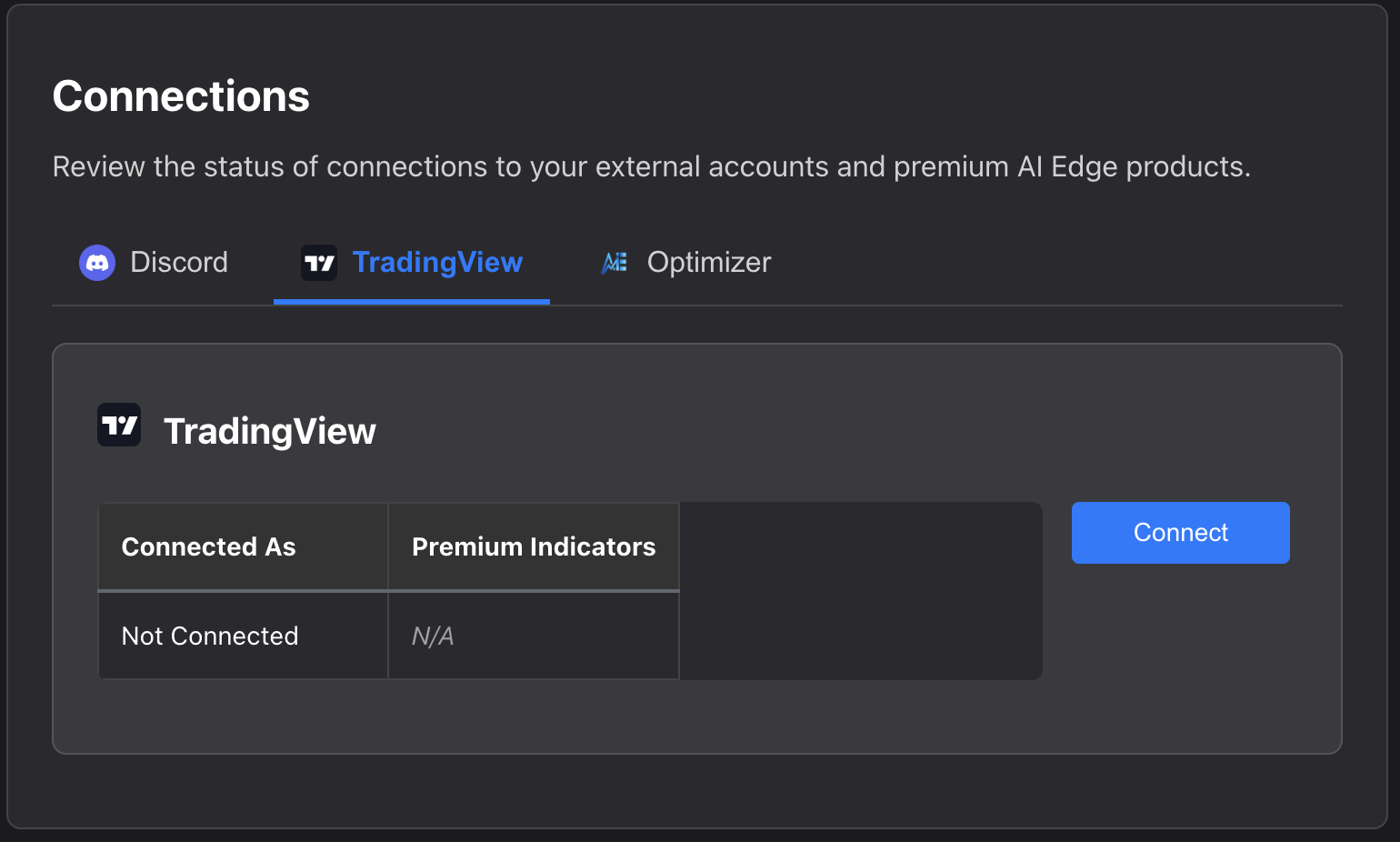
You'll see your current connection status. If you're not connected yet, the status will show "Not Connected" with "N/A" for Premium Indicators.
Step 3: Click the Connect Button
Click the blue Connect button on the right side of the TradingView panel.
Step 4: Enter Your TradingView Username
A modal will appear asking for your TradingView username:
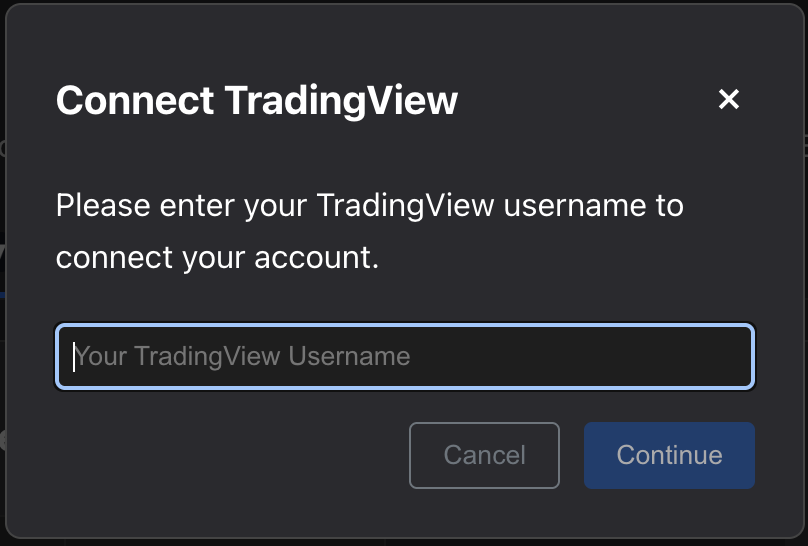
- Enter your TradingView username in the text field
- Click the blue Continue button
Make sure you enter your exact TradingView username - this is case-sensitive and must match your TradingView account exactly.
Step 5: Confirm Connection
After clicking Continue, the modal will close and your connection status will update to show your connected username.
Updating Your TradingView Username
You can update your TradingView username at any time by clicking the Disconnect button and then reconnecting with a new username. Each new connection overwrites the previously registered username.
Step 6: Reload Your Browser
Before checking for your new indicator access in the TradingView website:
- Close all TradingView browser tabs
- Reload your browser to clear any cached data
- Log in to TradingView with the username you just registered
If you skip reloading your browser, you may see old/cached information that doesn't include your new indicator access.
Step 7: Find Your Invite-Only Scripts
After reloading your browser:
- Log in to TradingView using your registered username
- Navigate to: Supercharts → Indicators → Invite-only Scripts
You should now see Justin Dehorty's premium indicators in your invite-only scripts list!
If you don't see the indicators after following these steps, make sure:
- Your Patreon subscription is active
- You entered your TradingView username correctly
- You've waited a few minutes for the access grant to process
- You've completely reloaded your browser